Register Outside Fundraisers
With Destiny Fundraising Manager, you can register and get school and/or district approval for fundraisers that are run offline or through other platforms.
Get approval for:
-
Online fundraisers using other digital platforms, such as GoFundMe and Donors Choose.
-
Offline fundraisers, such as a traditional bake sale or car wash.
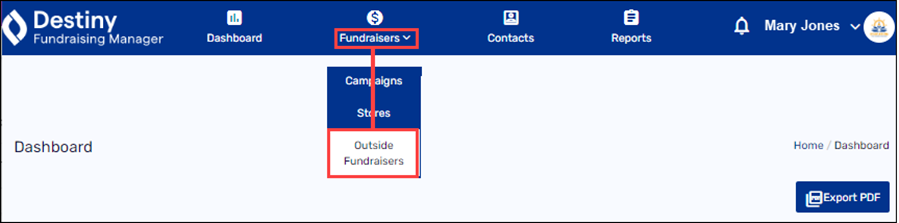
1. In the header, select Fundraisers > Outside Fundraisers.
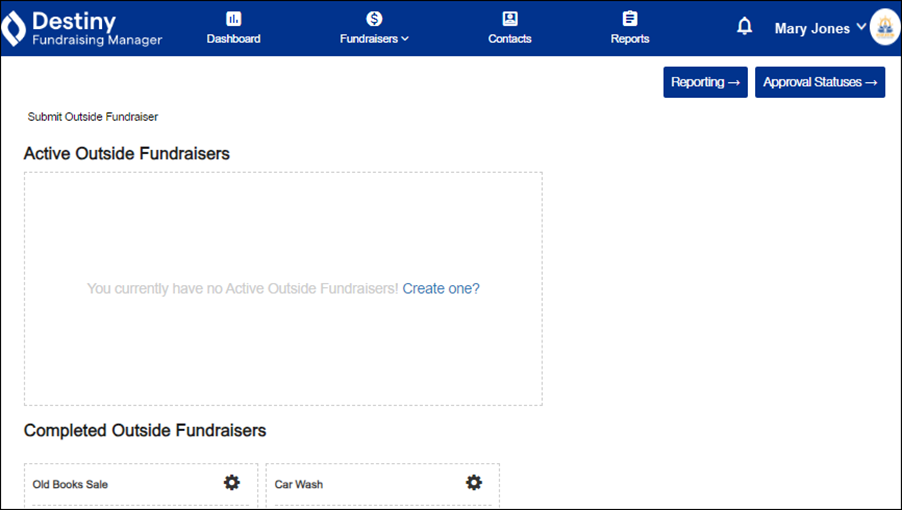
2. Under Active Outside Fundraisers, click Create one?.
The Fundraising Registration page appears.
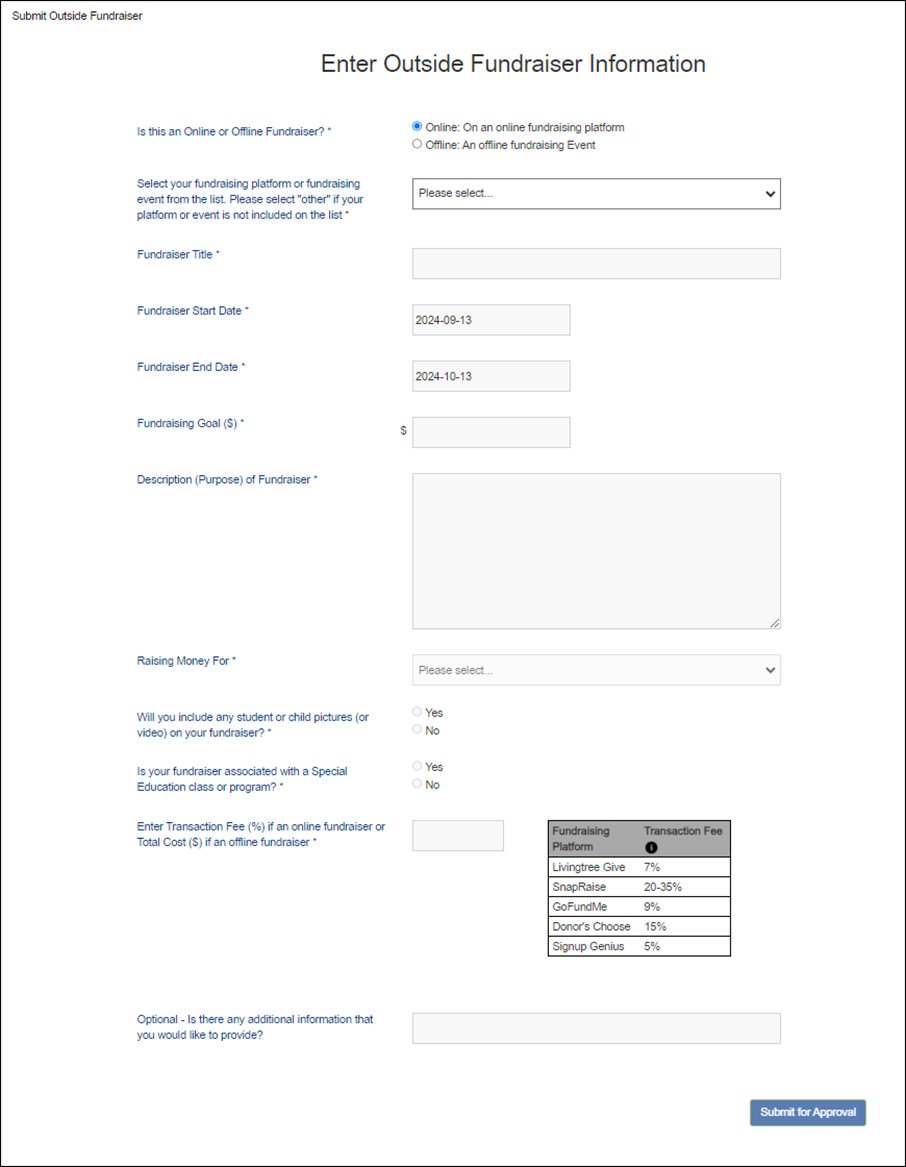
3. Fill in your fundraiser details:
|
Field |
Description |
|---|---|
|
Is this an Online or Offline Fundraiser? |
Do one of the following:
|
|
Select your fundraising platform or fundraising event from the list. |
Use the drop-down to select the appropriate platform or event. Note: Select Other if your platform or event is not on the list. When Other is selected, a new field appears. Type the name of the platform or event. |
|
Fundraiser Title |
Enter a name. |
|
Fundraiser Start Date |
Enter the start date. |
|
Fundraiser End Date |
Enter the end date. |
|
Fundraising Goal ($) |
Enter your target goal amount. |
|
Description (Purpose) of Fundraiser |
Enter a description for your campaign. |
|
Raising Money For |
Use the drop-down to select a category. Note: Categories are prepopulated. If you don’t see your category, pick the closest match. |
|
Will you include any student or child pictures (or videos) on your fundraiser? |
Select Yes or No. |
|
Is your fundraiser associated with a Special Education class or program? |
Select Yes or No. |
|
Transaction Fee/Cost |
Do one of the following:
|
|
Additional Information |
Enter some brief additional information. |
4. Click Submit for Approval. A pop-up appears.
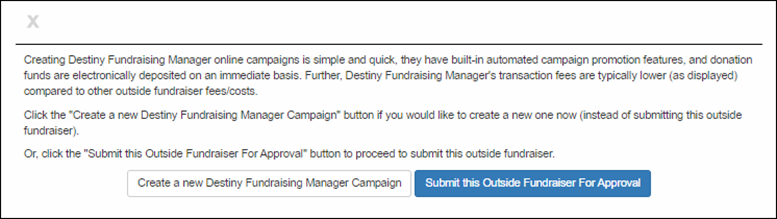
5. Do one of the following:
-
If you want to continue with this fundraiser registration, click Submit this Outside Fundraiser For Approval.
-
If you want to change this fundraiser to a DFM online campaign, click Create a New Destiny Fundraising Manager Campaign.
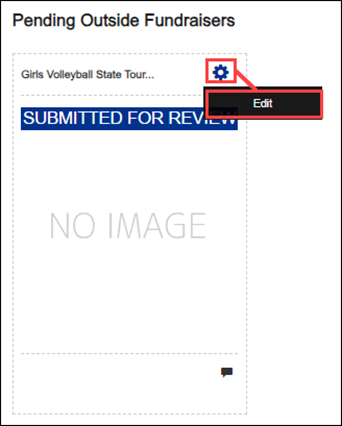
To edit a fundraiser:
On the fundraiser you want, select the gear icon > Edit.
To check a fundraiser’s approval status:
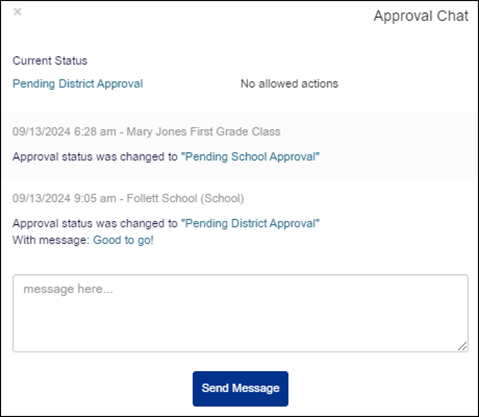
1. In the lower-right corner of the fundraiser tile you want, click the speech bubble icon.

A pop-up appears.
2. Do one of the following:
-
View the Current Status.
-
To send a message, type in the text box, then click Send Message. Your message appears in the chat.
-
To close the pop-up, in the top-left corner, click X.
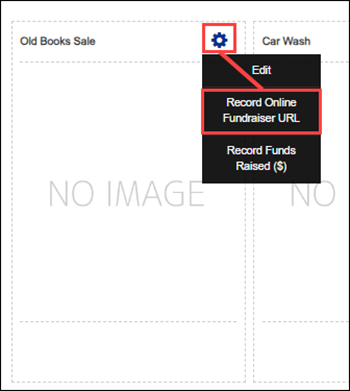
To add a URL to an online fundraiser:
1. Select the gear icon >Record Online Fundraiser URL.
A pop-up appears.
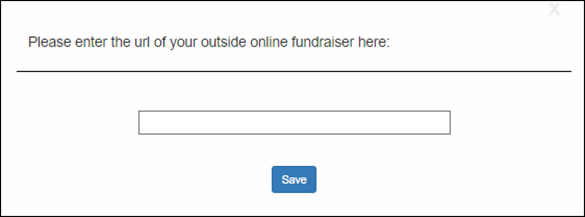
2. Paste the URL in the field.
3. Click Save.
To record donations when the fundraiser is over:
1. Under Completed Outside Fundraisers, select the gear icon >Record Funds Raised.
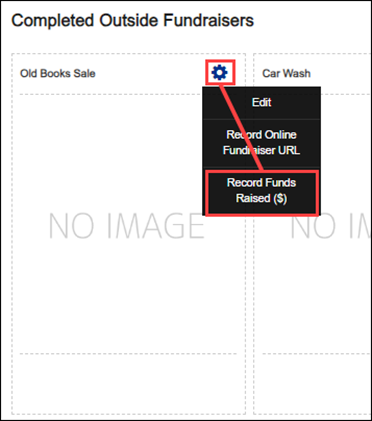
A pop-up appears.
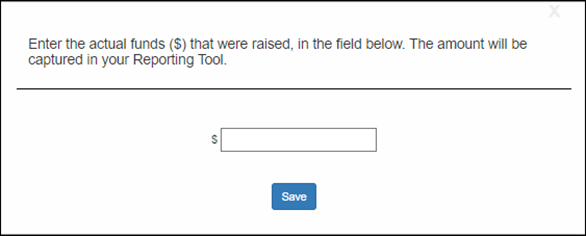
2. Enter the amount you raised. The amount will be under Reports.
3. Click Save.
For additional help, contact techsupport@follettsoftware.com.